Overclocking for Gamers: Risks and Rewards of Pushing Your Hardware for Extra Performance
Overclocking
for Gamers: Risks and Rewards of Pushing Your Hardware for Extra Performance

(Image credits to adobe stock)
In the world of gaming, performance is everything. Gamers strive for the
smoothest, most immersive experience possible, often leading them to seek out
the latest and most powerful hardware. However, not everyone can afford to
constantly upgrade their components. Enter overclocking, a technique that has
become increasingly popular among gamers looking to extract more performance
from their existing hardware. But what exactly is overclocking, and what are
the risks and rewards associated with it? Let's dive in.
What is Overclocking?
Overclocking involves increasing the clock rate of a computer's CPU,
GPU, or other components beyond the manufacturer's specifications. Essentially,
it makes the component run faster than it was originally intended to. This can
lead to significant performance gains in gaming and other intensive
applications.

(GPU Overclocking)
The Rewards of Overclocking :-
1. Improved Performance:-
The most obvious benefit of overclocking is enhanced performance. By increasing the clock speed of your CPU or GPU, games can run smoother, with higher frame rates and improved responsiveness. This can make a big difference in fast-paced, competitive games where every millisecond counts.
2. Cost-Effective Upgrades:-
- Overclocking allows gamers to extend the life of their current hardware, potentially delaying the need for costly upgrades. This can be particularly beneficial for those who want to stay within a budget while still enjoying the latest games.
3. Customization and Control:-
- For enthusiasts, overclocking
provides a level of customization and control over their system that can be
highly satisfying. Tweaking settings to achieve the perfect balance between
performance and stability can be a rewarding hobby in itself.
4. Benchmarking and Competitions:-
- Many overclockers participate in benchmarking competitions where they push their hardware to the limits and compete for the highest scores. This community aspect adds a fun and competitive element to the practice.
The Risks of Overclocking : -

1. Heat and Cooling Issues:-
- Overclocking increases the amount of heat generated by
your components. Without adequate cooling, this can lead to overheating, which
can damage your hardware. Investing in better cooling solutions, such as
high-end air coolers or liquid cooling systems, is often necessary.
2. Stability and Reliability:-
- Pushing hardware beyond its rated limits can lead to
system instability. This might manifest as crashes, freezes, or even data
corruption. Achieving a stable overclock often requires a lot of testing and
fine-tuning.
3. Reduced Lifespan:-
- Running components at higher speeds and voltages can
reduce their overall lifespan. While many enthusiasts accept this trade-off,
it's important to be aware that overclocking can potentially lead to hardware
failure over time.
4. Voiding Warranties:-
- Many manufacturers void warranties if they detect that a
component has been overclocked. This means that if something goes wrong, you
might not be able to get a replacement or repair under warranty.
5. Power Consumption:-
- Overclocked components typically consume more power, leading to higher electricity bills and the need for a more robust power supply. This increased demand can also contribute to heat issues. A mid-high end system with a reasonable overclock can get by with a 550W PSU, but pushing the hardware to its limits can require 750–850W. Overclocking a CPU at 3.4 GHz with an overvolt can increase power draw by 120%, from 65–70W at 2.6 GHz to 160–180W.
Tips for Safe Overclocking : -
1. Research and Preparation:-
- Before starting, research your specific CPU and GPU models to understand their overclocking potential and limitations. Use forums, guides, and manufacturer resources to gather as much information as possible.
2. Quality Cooling:-
- Invest in high-quality cooling solutions to manage the
extra heat. Proper airflow in your case, along with high-performance coolers,
can make a significant difference.
3. Incremental Changes:-
- Increase clock speeds and voltages incrementally. Test
for stability and monitor temperatures after each change to ensure you don't
push your hardware too far, too quickly.
4. Use Reliable Software:-
- Utilize reliable overclocking software and stress-testing
tools. Programs like MSI Afterburner for GPUs and Prime95 for CPUs can help you
monitor performance and stability.
5. Keep an Eye on Temperatures:-
- Monitor temperatures using software tools like HW Monitor
or Core Temp. Ensure that your components stay within safe temperature ranges
during both idle and load conditions.
How to troubleshoot overclocking problems ?

Mediateck GPU (Image credits to adobe stock )
If you're experiencing problems with your CPU after
overclocking, there are a few things you can do to identify and remedy the
situation. Below are four steps for troubleshooting the main overclocking
problems you might encounter:
1. Test device stability
The first go-to when troubleshooting overclocking
issues is to conduct a stability test using benchmarking and stress-testing
tools such as Prime95, Cinebench, AIDA64, or OCCT. These tools will put your
CPU under heavy load to detect possible errors, crashes, or freezes, and help you find a stable overclocking level that
your machine can handle.
2. Monitor hardware temperatures
If you’re still having problems, overheating is the likely culprit, so double-check your device's temperature. To help with real-time monitoring, use software tools such as HW Monitor, Core Temp, or SpeedFan. Ideally, a safe temperature for your CPU should be between 40–65°C (or 104–149°F).
3. Change your settings
If you’ve discovered stability of overheating issues, adjust the two key overclocking settings accordingly. The multiplier regulates the CPU speed, and the voltage limits how much power the CPU receives — lowering both will reduce your ability to overclock but decrease component temperatures and power consumption.
4. Update drivers and BIOS
In other cases, overclocking issues may be due to your computer's software. Updating your device's drivers and BIOS using software like Avast Driver Updater can help ensure your system communicates clearly with your CPU and other components, helping to avoid potential errors, crashes, or freezes.
Is it safe to overclock your GPU?
Yes, GPU overclocking is safe. Overclocking increases the temperature and stress on your GPU, but failsafe mechanisms kick in before the stress becomes too much. If your computer can’t handle the overclock, it will simply crash or freeze. If that happens, lower your GPU overclock and test again.
Running at significantly higher clocks could, in theory, reduce your
PC’s lifespan. But we haven’t seen any significant data on the negative impact
of GPU overclocking. If you’re worried about how to overclock GPU consistently
without causing damage to your hardware, go slowly, be patient, and continue
testing to ensure you don’t push things too far.

How to safely overclock your
GPU?
To safely overclock your GPU, increase the clock rate at increments of 10 MHz, and test your system for stability and performance after each adjustment. If your system struggles, lower your overclock by 10 or 20 MHz, then test again. Once you know your maximum GPU overclock frequency, repeat the process with the GPU memory.
Should I overclock my graphics card?
Depending on the strength of your graphics card and how powerful a computer you need, overclocking may not be worth the effort. GPU overclocking boosts FPS and helps improve the performance of games, usually offering strong benefits for gamers — but there are other ways to boost your gaming PC without overclocking your GPU.
What are the most common
mistakes when overclocking?
· Going too
fast: If you raise your clock
frequencies too quickly, you’ll likely experience crashes, glitches, or even
a black screen.
· Not testing: Failing to test after each incremental clock increase prevents you from monitoring system performance at given clock speeds. It’s easy to go too far if you don’t test properly.
· Overheating: Overclocking your GPU increases its heat
output. To protect your computer from
overheating, you’ll want a custom-made card
with sufficient cooling ability, or even a water-cooling system in your PC.
·Auto-overclocking: Your GPU works harder when it’s overclocked,
so you don’t need to overclock it continuously. Use MSI Afterburner’s profile
system to save your overclock, and use it only when running a demanding game or
application.
·Expecting
too much: Even when overclocked, an
older GPU will never match the performance of the latest high-end cards. At
most, you can expect performance to increase by 10 to 20%.
Can you overclock a laptop GPU?

But while desktop GPUs usually have adequate cooling systems, mobile
GPUs produce a lot of heat in a much smaller case — so you’ll quickly hit their
thermal limits. Also, running at higher clock speeds increases power
consumption, so your battery won’t last as long.
Can’t I just Google the
overclock numbers for my graphics card and skip all that?
While you can look up other people’s GPU overclock speeds for the graphics card you have, their results may not work for you. This is because of chip lottery — not all GPU and memory chips are manufactured identically on a microscopic level. The material quality and lithography may vary enough that higher temps, voltage, and overall power can’t be matched.
Also, other equipment in your PC can significantly affect your overclock
potential. A customized gaming PC with a full water-cooling system can easily
support a higher overclock than another machine with default factory
components.
Does GPU overclocking really
work?
Yes, overclocking your GPU usually improves the performance of your games and media apps. More powerful systems may see a smaller benefit from overclocking the graphics card, but if your games typically run at 40 or 50 FPS, an overclocked GPU will result in noticeable improvements.
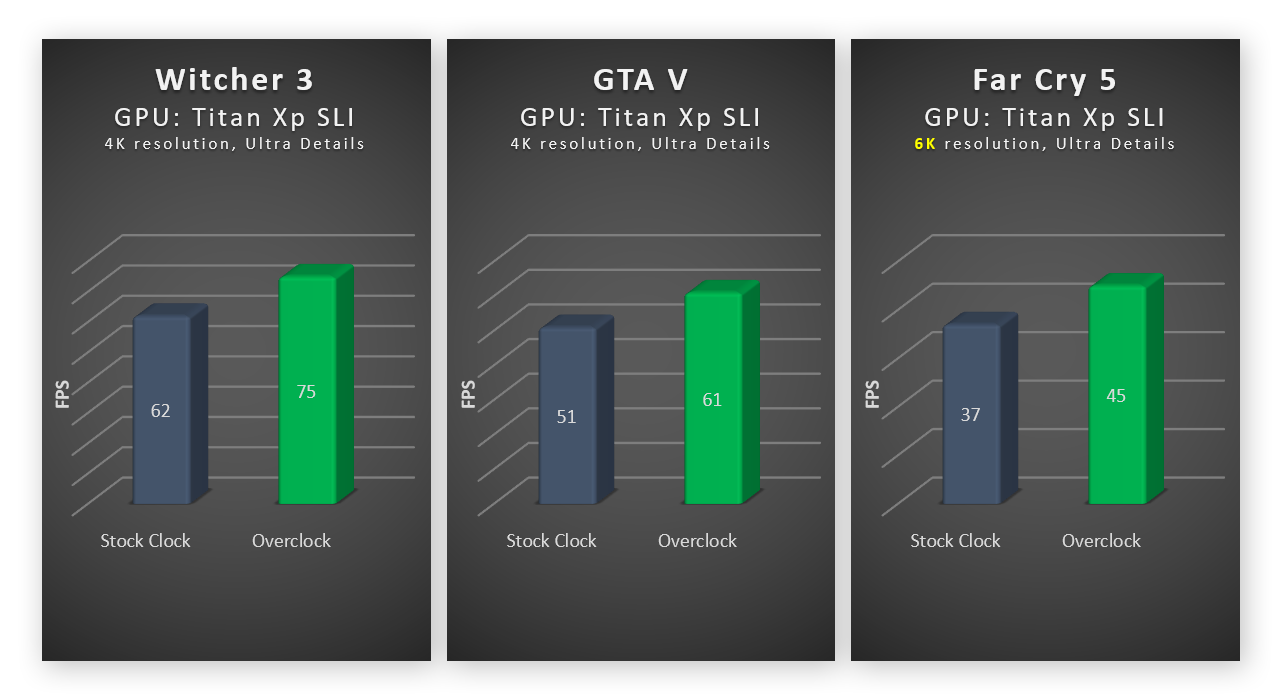 Comparing our gaming performance after overclocking the GPU.
Your GPU isn’t the only bit of hardware inside your PC that can benefit from a tune up. And depending on the hardware you have, apps you use, and games you play, a specialized optimization tool to get faster performance and more storage space automatically.
Can I just buy a pre-overclocked card?

(Image credits to https://www.tweaktown.com/news/video_cards/index16.html)
Yes, you can buy pre-overclocked GPUs, but you’ll still want to try
overclocking them yourself. Most third-party graphics cards still use NVIDIA or
AMD chips, such as the popular GeForce 1080 Ti, but their cooling systems,
power supplies, transistors, and boards are often designed to clock up higher.
These graphics cards range from identical matches to high-end models
with advanced cooling, higher-quality power supplies, and RGB lighting. Such
cards may be factory overclocked by 10 to
20%. But you can still manually overclock these cards even further — we’ve seen
even higher-clocked cards go up by another 15%.
Optimize your entire PC

Pc optimization(Image Credits to Avast.com)
Overclocking your graphics card is just one way to get a faster and more
powerful PC. Streamline and supercharge your computer with the comprehensive PC optimization toolkit.
It’ll automatically hunt down junk files, unused apps, and other unneeded data
while snoozing background apps to give you the fastest PC possible
Conclusion
Overclocking can be a great way for gamers to boost their system's
performance without breaking the bank. The thrill of squeezing extra power from
your hardware can be highly rewarding, but it comes with its share of risks. By
taking the necessary precautions and understanding the potential downsides, you
can safely explore the world of overclocking and enjoy the benefits it offers.
Whether you're looking to gain a competitive edge in your favorite game or just
want to see what your system is capable of, overclocking can be a fun and
exciting endeavor. Happy gaming!
Thanks For Reading !
Comments
Post a Comment